
How to Take Notes on Web Pages in Chrome with a Free Extension
Learn how web page notes differ from Chrome bookmarks and the reading list, how URL-based notes work, and how to write your first note with the free Fusenly extension.
When you are reading a web page and think, “I need to check this later,” deciding where to write that reminder can interrupt your work. A note in another app becomes separated from the page, while a bookmark has no space for a longer explanation.
This article explains what Chrome's built-in features can and cannot do, then walks through adding notes to web pages with an extension.
If you are choosing between notepads, web clippers, and page notes, start with How to Choose a Chrome Note-Taking Extension.
When web page notes are useful
You usually want a note when you know you will return to the same page.
- You find something to check while reading a specification or internal document.
- You want to record a price or condition on a product page you are comparing.
- You want to remember which part of a technical article relates to your problem.
- You need a reminder about a task in an admin screen you use regularly.
In each case, the value is having the note in view when you open that page. Collecting everything in a separate app does not necessarily bring the reminder back at the right moment.
What Chrome's built-in features can and cannot do
Chrome provides bookmarks and a reading list for saving pages. Both preserve a page's location, but neither provides a separate field for writing notes about it.
| Feature | What it does | Its limitation as a note-taking tool |
|---|---|---|
| Bookmarks | Organize pages in folders and search them by entering @bookmarks in the address bar | You can rename a bookmark, but there is no note body |
| Reading list | Keep pages to read later in the side panel | Focuses on read status rather than recording your thoughts |
| Side panel | Display bookmarks, the reading list, or history beside a page | Provides a place to display tools, rather than a built-in notes feature |
As of October 2026, Google's help does not describe a built-in feature for attaching notes to pages. An extension is a practical option when you want to keep a page and its notes together.
How notes are saved by URL
Many web note extensions use the page URL as the key for saving a note. Opening that URL again retrieves what you wrote earlier.
What counts as the “same page” matters here. Fusenly ignores the fragment after #, such as a link to a heading, when matching a page. Query parameters after ? are generally treated as distinct, so pages with different search conditions can have different notes. Some parameters that do not change the underlying content, such as YouTube's playback position parameter t, are treated as the same page.
For more detail, see How to Save Notes by URL in Chrome.
Write your first web page note with Fusenly
Fusenly is a free Chrome extension for writing notes in the side panel. To get started:
- Add Fusenly from the Chrome Web Store.
- Pin Fusenly to the toolbar from Chrome's extensions menu.
- On the page you want to annotate, click the Fusenly icon. You can also toggle the panel with
Ctrl+Shift+Yon Windows orCommand+Shift+Yon Mac. - Enter a title and note body in the side panel. Your changes are saved automatically.
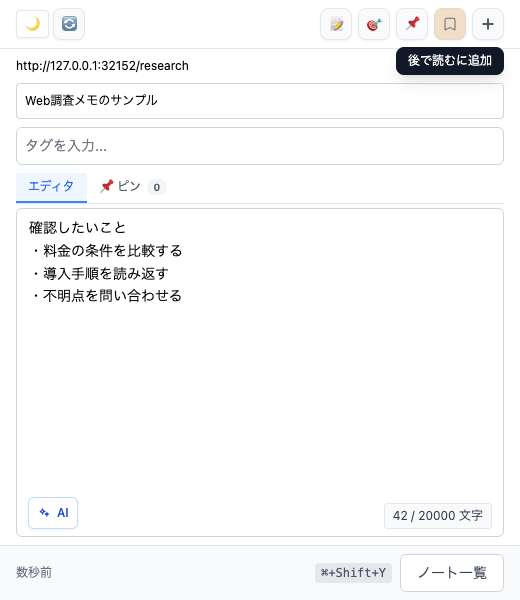
The note body supports Markdown. Headings and lists make longer research notes easier to review. Open the notes list at the bottom of the side panel to browse and search notes you have already written.
To comment on a particular part of the page, use pins. See How to Add Comments and Annotations to Web Pages for the steps.
Benefits and limitations
The main benefit of a URL-based note is that you do not need to search for it. With the side panel open, moving to another page switches to that page's notes.
Keep these limitations in mind:
- Notes do not work on nonstandard pages such as Chrome settings screens beginning with
chrome://. - Different URL parameters can cause the same article to be treated as separate pages.
- Notes appear while the side panel is open. Opening a page by itself does not automatically show the note panel.
As your collection grows, you can export a backup as a ZIP file from settings. Each note is exported as a Markdown file.
Frequently asked questions
Is Fusenly free?
Yes. Fusenly is a free Chrome extension.
Does it work in Chrome on a smartphone?
Fusenly is an extension for desktop Chrome. Smartphone versions of Chrome do not support these extensions.
Can I attach a note to a particular paragraph?
Use a pin to attach a comment at the location you click. Page notes and pins are managed in the same side panel.
How does it differ from sticky note extensions?
Sticky note extensions focus on placing notes over the page, while Fusenly focuses on managing notes in the side panel. Compare the approaches in Sticky Notes for Websites in Chrome.
Related articles
- How to Choose a Chrome Note-Taking Extension for Your Workflow
Compare Chrome note-taking extensions for quick notes, new tabs, web clipping, sticky notes, and sidebar notes. Learn where Google Keep, OneNote Web Clipper, Note Anywhere, and Fusenly fit.
- How to Save Notes by URL in Chrome and Find Them When You Return
Keep notes connected to their source pages. Learn how URL-based notes differ from a regular notes app, how to use them for research, and how to organize them with tags in Fusenly.
- Sticky Notes for Websites in Chrome: Comparing Extension Types
Compare sticky note, highlighting, annotation, and side-panel extensions for Chrome. Understand the differences and choose an approach that fits how you read and review web pages.