
How to Choose a Chrome Note-Taking Extension for Your Workflow
Compare Chrome note-taking extensions for quick notes, new tabs, web clipping, sticky notes, and sidebar notes. Learn where Google Keep, OneNote Web Clipper, Note Anywhere, and Fusenly fit.
When choosing a Chrome note-taking extension, start with what you want to record and where you expect to review it. Capturing an idea quickly and leaving a question beside a research page call for different places to keep a note.
This guide groups extensions by workflow and compares features described in official sources. We develop and provide Fusenly, and explain the checks that can help you choose a tool for your own work.
Choose by where you want to review notes
Think about where you normally want to open a note.
| What you want to save | Suitable type | What to check |
|---|---|---|
| An idea or temporary working note | Popup notepad | Steps needed to open it and what is saved when you close it |
| Today's tasks or a draft | New-tab notes | Whether it replaces the new-tab page and how you switch between notes |
| Article content or a selection | Web clipper | Capture scope, destination app, and where you edit the result |
| A reminder at a particular page location | Sticky notes or annotations | What reappears on a return visit and how to move or hide it |
| Key points and questions about a source page | Sidebar or URL-based notes | Page matching, tags, search, and behavior when navigating |
A draft for your next meeting may not need a connection to a page. When comparing product pages, however, keeping each note attached to the right URL reduces repeated research.
Compare extensions by purpose
This comparison uses official help and store descriptions checked on October 20, 2026, alongside Fusenly's features. Check the official pages for the features you need before choosing.
| Extension | Main use | Where to review notes and what to check |
|---|---|---|
| Google Keep Chrome extension | Save a page or selected information to Keep | Open and edit URL-associated notes in the Keep web app |
| OneNote Web Clipper | Capture a full page, region, or article in OneNote | Choose a notebook section; signing in is required |
| MemoPad New Tab | Write Markdown notes in a new tab | Replaces the new-tab page and supports switching between notes |
| Note Anywhere | Place sticky notes over a page | Notes reappear when you return; moving and resizing are supported |
| Fusenly | Write and organize page-specific notes in the side panel | Work with URL notes, tags, read later, and pinned comments |
Google Keep: collect information in Keep
If you already use Keep, the extension can collect page information in the same place. Google's official help explains saving images, selections, and pages, and opening URL-associated notes in the Keep web app.
The help also describes a change to automatic saving for notes created in the extension. Check which action saves what you write when you try it.
OneNote Web Clipper: keep article content as reference material
Microsoft's official guide describes capturing full pages or regions as images, or saving articles as editable text and images. You can choose a destination section and add your own contextual note.
This suits a workflow where you want to bring source material into a notebook as well as record your thoughts about it.
MemoPad New Tab: make a new tab your writing space
The official MemoPad New Tab listing describes replacing the new-tab page with a Markdown editor and creating and switching between multiple notes.
It is an option when you want today's tasks or a draft to appear whenever you open a new tab. Consider how the replacement fits with shortcuts and other information you currently use there.
Note Anywhere: put reminders over the page
The official Note Anywhere listing describes placing, moving, and resizing notes on a page, then displaying them again on return visits.
Consider it when you want to leave a reminder as you would with a physical sticky note. See Sticky Notes for Websites in Chrome for a closer comparison with highlighting tools.
Fusenly: write beside the page you are reading
Fusenly lets you write a note for the current page in Chrome's side panel. Notes support Markdown and can be organized with tags and a read-later flag. This is useful while researching a page or comparing several sources.
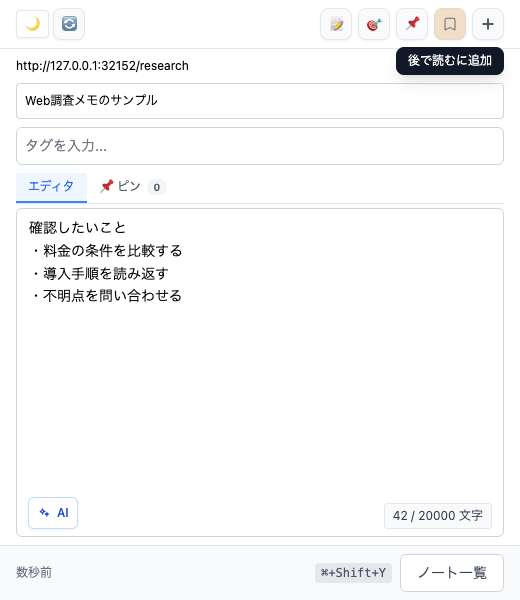
Use general notes for content unrelated to a URL, and pinned comments for feedback about a specific location. This serves a different purpose from clipping the full article or highlighting source text.
Three checks before adopting a tool
1. Where notes are saved and how saving works
Check whether notes stay on the device or are sent to a notes service. Account requirements, offline editing, and the need to press a save button also affect everyday use.
Try a short sample note through the actions you repeat, such as closing and reopening the browser, to understand the behavior.
2. How you will find notes later
Check whether you can search titles, note text, URLs, or tags. Showing a note on the current page and searching across older notes are separate capabilities.
See How to Save Notes by URL in Chrome for organizing page-specific records.
3. How to take your data with you
Check what can be exported and in which format when you want a backup or decide to move tools. If URLs and tags matter as well as note text, check whether the export includes them.
Fusenly can export a ZIP file from settings, with notes available as Markdown files.
Start with one page and one note
Try a short note on a page you actually use:
Why I am saving this page:
What I learned:
What to check next:
After switching pages or tabs, check whether you can get back to the relevant note easily. A new-tab page or notepad can suit a meeting draft, a clipper can capture source material, and URL notes can bring your thinking back alongside a page.
To try Fusenly, start with Getting Started. For the steps from opening the side panel to writing a note, see How to Take Notes on Web Pages in Chrome.
Related articles
- How to Take Notes on Web Pages in Chrome with a Free Extension
Learn how web page notes differ from Chrome bookmarks and the reading list, how URL-based notes work, and how to write your first note with the free Fusenly extension.
- Sticky Notes for Websites in Chrome: Comparing Extension Types
Compare sticky note, highlighting, annotation, and side-panel extensions for Chrome. Understand the differences and choose an approach that fits how you read and review web pages.
- How to Save Notes by URL in Chrome and Find Them When You Return
Keep notes connected to their source pages. Learn how URL-based notes differ from a regular notes app, how to use them for research, and how to organize them with tags in Fusenly.