
Sticky Notes for Websites in Chrome: Comparing Extension Types
Compare sticky note, highlighting, annotation, and side-panel extensions for Chrome. Understand the differences and choose an approach that fits how you read and review web pages.
On paper, you can place a sticky note on a page you want to revisit. To do something similar on a web page, you need a Chrome extension.
Extensions described as sticky note tools can work quite differently. Some float notes over a page, some highlight text, and others collect notes in a side panel. This article compares these approaches to help you choose one for your workflow.
For new-tab notepads and saving information to a notes app, see How to Choose a Chrome Note-Taking Extension.
What is a sticky note on a web page?
A web sticky note is a way to bring back your own note at a location when you open a page. The extension saves a connection between the URL and the note, then retrieves it when you return.
Unlike a paper document, a web page can change. An article update or a new layout may move the annotated content, and extensions differ in how they restore note positions.
When sticky notes are useful
Notes are especially useful on pages you revisit:
- Record key points or questions during research.
- Leave operating reminders in internal tools or admin screens.
- Mark areas to revise while building a website.
- Highlight passages to cite in papers or technical articles.
For a page you will only read once, a reading list or bookmark may be enough. Consider whether writing a note will help you later.
Chrome extensions for sticky notes and annotations
The comparison below reflects the Chrome Web Store listings and official sites recorded in the Japanese article as of October 2026. Pricing and user counts can change, so check the listing before installing.
| Extension | Type | Main features | Pricing described by the official source |
|---|---|---|---|
| Note Anywhere | Sticky notes | Place, move, resize, and hide notes on a page; show them again automatically on a return visit | Not specified in the store listing |
| Weava Highlighter | Highlighting | Multicolor highlights and annotations on web pages and PDFs; folder organization | Free, with a Premium option for additional features |
| Glasp | Highlighting | Add notes and tags to web and PDF highlights; AI summaries | Free, with in-app purchases |
| Hypothesis | Annotation | Annotate web pages and PDFs; work with groups | Personal use and collaboration are free |
| Fusenly | Side panel | Manage notes by URL in a side panel and attach pinned comments to clicked locations | Free |
Note Anywhere is closest to a paper sticky note: notes float over the page when you open it. Weava and Glasp focus on highlighting text, which suits close reading of papers and news. Hypothesis supports sharing annotations with other people.
How Fusenly differs
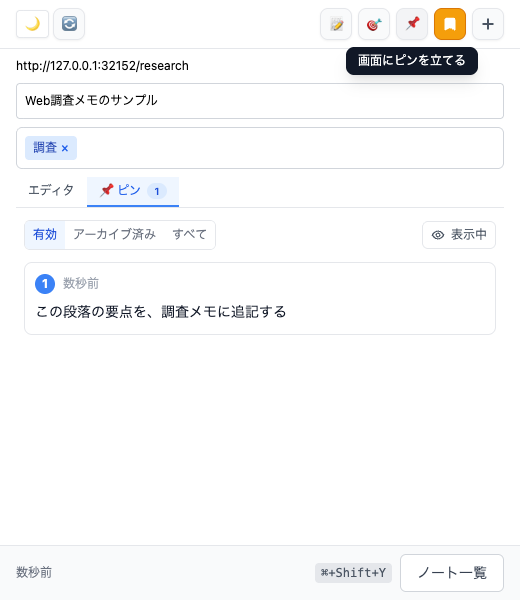
Fusenly puts notes in Chrome's side panel. Because the note body does not float over the page, it does not cover the text you are reading.
To mark a particular location, use a pin. Press the pin button in the side panel, then click the location on the page to leave a comment. Pin visibility can be toggled, so you can hide markers during normal reading and show them when reviewing.
Fusenly does not include text highlighting. If you want to read with colored highlights, a tool such as Weava or Glasp may suit that task better.
Choose an approach that fits your work
Consider these questions:
- Do you want notes over the page or beside it? Choose sticky notes for floating text, or a side panel when you want to keep the article unobstructed.
- Are you recording your own thoughts or marking source text? Highlighting is quicker when you mainly need to mark a passage.
- Will you work alone or with a team? If sharing is essential, include tools designed for collaboration, such as Hypothesis, in your comparison.
- Can you find notes later? As notes accumulate, a list and search become important. Check how you can retrieve notes across pages.
For the Fusenly workflow, see How to Take Notes on Web Pages in Chrome.
Frequently asked questions
Will note positions survive page updates?
Page structure changes can move or hide annotations in any extension. Fusenly uses several clues, such as element IDs and nearby text, to find a pin's target. If it cannot find the target, the pin appears faintly at its last known position.
Can Chrome add sticky notes without an extension?
As of October 2026, Chrome's built-in features do not include attaching notes to web pages. Bookmarks and the reading list save pages, but do not provide a note body.
Can I use more than one extension at the same time?
You can install several, but elements they display over a page may overlap. If two extensions serve the same purpose, choosing one can make the page easier to use.
Related articles
- How to Choose a Chrome Note-Taking Extension for Your Workflow
Compare Chrome note-taking extensions for quick notes, new tabs, web clipping, sticky notes, and sidebar notes. Learn where Google Keep, OneNote Web Clipper, Note Anywhere, and Fusenly fit.
- How to Take Notes on Web Pages in Chrome with a Free Extension
Learn how web page notes differ from Chrome bookmarks and the reading list, how URL-based notes work, and how to write your first note with the free Fusenly extension.
- How to Add Comments and Annotations to Web Pages for Design Reviews
Learn when to use pinned comments on web pages, how they help with design reviews, and how to choose between page notes, comments, and screenshots.