
How to Save Notes by URL in Chrome and Find Them When You Return
Keep notes connected to their source pages. Learn how URL-based notes differ from a regular notes app, how to use them for research, and how to organize them with tags in Fusenly.
When you revisit a web page every few days, remembering what you read and what you thought last time can take longer than expected. Even if you wrote it down in a notes app, you still have to find the right note.
Saving notes by URL keeps them available alongside the page. This article explains the idea and shows how to manage URL-based notes in Chrome's sidebar.
Why connect a note to a URL?
A URL-based note saves you the effort of looking for it: the page itself becomes the index.
Suppose you are comparing pricing pages for three cloud services. If you write “Company A offers 20% off for annual billing” in a separate app, it may be difficult to identify the source later. Attaching the note to Company A's pricing page keeps the source and the observation together from the start.
Notes can also remind you what to check on a return visit. If you write “This table should be updated after the next release,” the reminder is there when you open the page again.
How URL notes differ from a regular notes app
The two approaches suit different kinds of information.
| Regular notes app | Notes organized by URL | |
|---|---|---|
| Unit of organization | Topic or project | Web page |
| What prompts a review | Opening the note yourself | Returning to the page |
| Best suited to | Ideas and conclusions drawn from several sources | Page summaries, questions, and things to check |
| Source management | You paste the URL manually | The note is already connected to the page |
Use URL notes while collecting material and a notes app when turning that material into a report. Fusenly also includes general notes that are not tied to a particular page, which you can use for short summaries.
Use URL notes for web research
After reading a source, record three things:
- What you learned from the page, in one or two lines.
- What remains unclear or needs checking against another source.
- How you will use the page: quote it, add it to a comparison, or set it aside.
The third point is particularly useful. By the end of a research task, much of the material you collected may no longer be needed. Recording why you decided against using a source helps you avoid reading it all over again.
For the broader workflow, see How to Organize Web Research Notes by URL.
Organize notes with tags
Once you have dozens of notes, you may want to review them across pages without opening every source. Tags help with this.
Start with two simple categories rather than a detailed taxonomy: a project label and a status label.
- Project examples:
competitor research,new feature A,recruiting - Status examples:
needs checking,possible citation
A project tag brings the relevant pages together, while a status tag tells you what to do next. Consolidate similar tags periodically as your collection grows.
Manage URL notes in Fusenly
Click Fusenly's toolbar icon to open Chrome's side panel and write a note for the current page. When you change tabs with the panel open, the note switches to the new page.
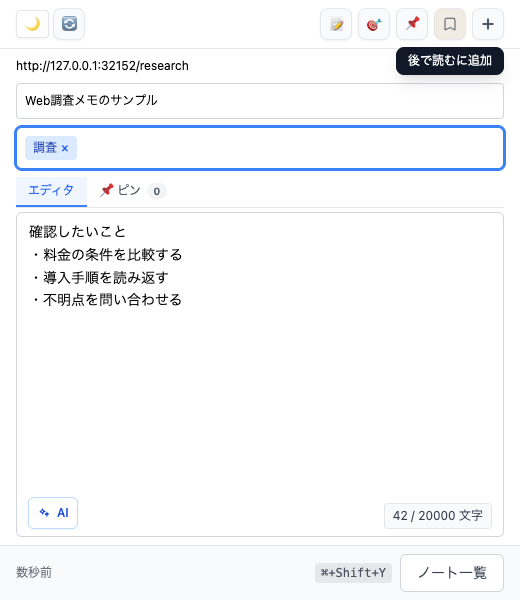
- Add tags: Type in the tag field and confirm with
Enteror a comma. Previously used tags appear as suggestions. - Keep several notes for one page: If a URL has multiple notes, use the note selector at the bottom of the side panel to switch between them.
- Find notes in the list: Open the notes list to search notes, filter by website domain, or show notes marked to read later.
- Clean up tags: The tag management screen supports renaming, deleting, and merging tags.
URL matching has a few details to watch. Fragments after # are ignored, while different query parameters after ? can result in separate pages. If a note seems to be missing from the same article, compare the ends of the URLs.
Frequently asked questions
Do notes appear just by opening a page?
Fusenly displays notes while its side panel is open. Open the panel with the toolbar icon, Ctrl+Shift+Y on Windows, or Command+Shift+Y on Mac.
Can I write notes unrelated to a web page?
Yes. Switch to general notes using the button at the top of the side panel. Those notes are available regardless of which page you are viewing.
Can I back up my notes?
Export a ZIP file from settings. Each note is saved as an individual Markdown file.
For saving pages to read later, see How to Organize Read-Later Pages in Chrome.
Related articles
- How to Take Notes on Web Pages in Chrome with a Free Extension
Learn how web page notes differ from Chrome bookmarks and the reading list, how URL-based notes work, and how to write your first note with the free Fusenly extension.
- How to Organize Web Research Notes by URL
Learn a practical way to organize web pages, notes, and read-later articles by URL so useful research does not get lost.
- How to Organize Read-Later Pages in Chrome: Reading List vs. Bookmarks
Compare Chrome reading lists and bookmarks, make saved articles easier to find, and use tags and short notes to keep a useful read-later list with Fusenly.