
How to Add Comments and Annotations to Web Pages for Design Reviews
Learn when to use pinned comments on web pages, how they help with design reviews, and how to choose between page notes, comments, and screenshots.
You notice that a button label could be shorter. To explain it, you take a screenshot, draw a box, and paste it into a chat. Even leaving a reminder for yourself can feel like enough work to put it off.
Attaching a comment directly to the relevant part of a page reduces that effort. This article explains how page comments and annotations work and where they fit into website and design reviews.
When a comment needs a location
A comment about a specific part of a page is useful when you want to:
- Identify headings or images to revise on a landing page before launch.
- Leave an observation beside a form field that may confuse users.
- Mark a sentence in a long specification that needs clarification.
- Record a useful section of a competitor's website.
In these situations, where the comment applies matters as much as what it says. Marking the location is clearer than describing “the second column of the pricing table.”
How pinned comments work
A pinned comment attaches a remark to a marker placed where you click on a page. Like a pin on a map, it identifies a particular location. As you scroll, the marker stays with its target element.
Keep one issue per pin. If a comment combines “not enough spacing,” “the label is too long,” and “the image is outdated,” it becomes hard to track what has been addressed. Separate pins make it easier to clear completed items.
Use comments in website and design reviews
Website reviews often involve comparing a design mockup with the browser implementation. Commenting on the implemented page makes it easier to explain exactly where a change is needed.
Dedicated review tools are another option when a team needs to collect and manage feedback. Marker.io and BugHerd turn website feedback into tasks and primarily offer paid plans. As of the October 2026 comparison, neither has a free plan, although free trials are available. Pastel offers a limited free plan.
For a personal checklist, an extension may be enough. Review the page beforehand and leave pins for the observations you want to discuss in a meeting.
Notes, comments, and screenshots serve different purposes
| Method | Best for | Less suited to |
|---|---|---|
| Page notes | A summary, your thoughts, and next actions for the whole page | Pointing to a precise location |
| Pinned comments | Specific feedback about “this part” | Long explanations spanning several pages |
| Screenshots | Preserving how a page looked at a particular moment and sending it to others | Checking an updated page or searching the content as text |
Screenshots preserve the previous appearance after a page changes. Combine them with pinned comments when you need a before-and-after comparison. Fusenly does not include a screenshot feature; use your operating system or Chrome for captures.
Add a pinned comment in Fusenly
Create pins from the side panel:
- Open Fusenly's side panel on the page you want to comment on.
- Press the pin-placement button at the top.
- Move the cursor over the page and click the location you want to annotate. Press
Escto cancel. - Write your comment in the input that appears.
- Press “Save.”
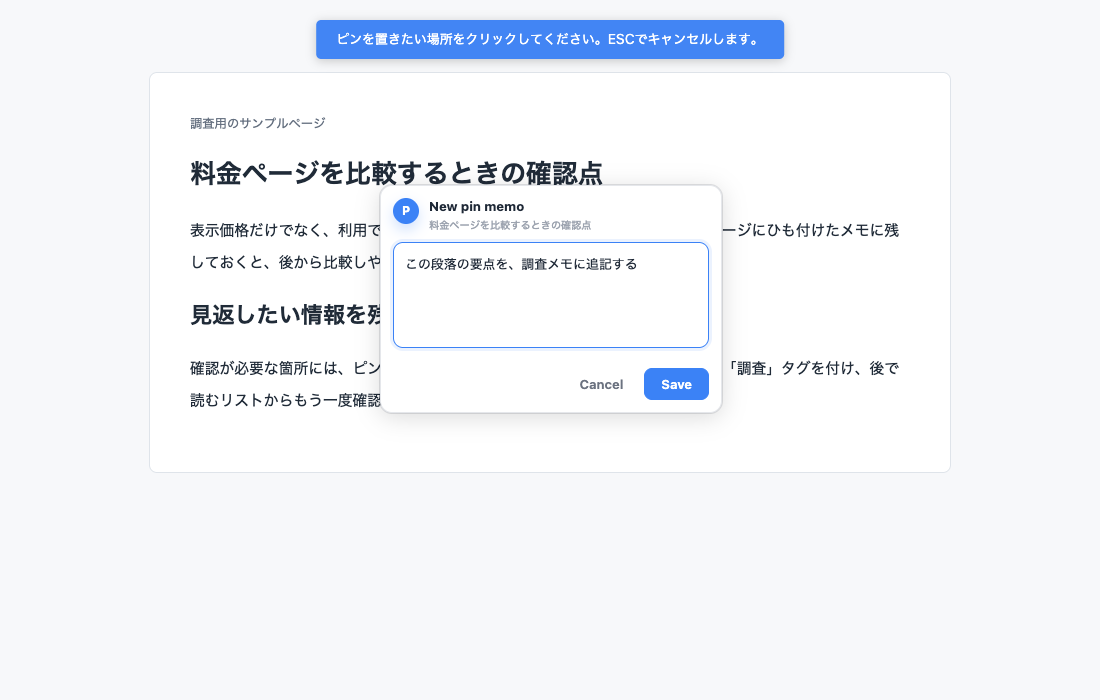
Review saved pins in the side panel's pins tab. Archive completed items to keep the list manageable. You can move a pin later and toggle its visibility.
Pins appear on the page while the side panel is open. Close the panel to return to normal browsing.
Frequently asked questions
Can I share comments with other people?
Fusenly's pins are primarily intended as personal notes. If you need to collect and manage feedback from a team, consider a dedicated review tool.
What happens to pins when the page changes?
Fusenly looks for the target again using several clues, including element IDs and nearby text. If it cannot find the target, it displays the pin faintly at its last known location.
Can I also write a note about the whole page?
Yes. Use the editor tab for page notes and the pins tab for pinned comments. See How to Take Notes on Web Pages in Chrome for the page-note workflow.
For a comparison with sticky note and highlighting tools, see Sticky Notes for Websites in Chrome.
Related articles
- Sticky Notes for Websites in Chrome: Comparing Extension Types
Compare sticky note, highlighting, annotation, and side-panel extensions for Chrome. Understand the differences and choose an approach that fits how you read and review web pages.
- How to Take Notes on Web Pages in Chrome with a Free Extension
Learn how web page notes differ from Chrome bookmarks and the reading list, how URL-based notes work, and how to write your first note with the free Fusenly extension.
- How to Save Notes by URL in Chrome and Find Them When You Return
Keep notes connected to their source pages. Learn how URL-based notes differ from a regular notes app, how to use them for research, and how to organize them with tags in Fusenly.