
Take Notes in the Chrome Side Panel: Open, Pin, and Save
Take notes beside a web page in Chrome. Learn how to open and pin Fusenly, use its shortcut, check notes across tabs, and understand local storage and sync.
To take notes beside a web page in Chrome, use a note extension that supports the side panel. Fusenly displays a note associated with the current URL, so you can read the page and add questions without moving to another app or tab.
This guide covers opening the panel, saving your first note, and finding it when you return. For a broader choice between sidebar notes, sticky notes, and note apps, see how to take notes on web pages.
Choose between page notes and a shared scratchpad
Chrome's side panel is a place for content beside the page. Google's help covers built-in panels such as bookmarks, reading lists, and history. A note extension provides an editor for your own writing.
Some editors keep the same scratchpad visible across pages; others change notes with the URL. A scratchpad suits a meeting agenda you want to keep in view. Page-specific notes suit separate questions about product A and product B. Decide which behavior you need before writing a long note.
1. Install Fusenly and pin its toolbar icon
- Add Fusenly from the Chrome Web Store.
- Open Chrome's extensions menu.
- Pin Fusenly so its icon appears in the toolbar.
- Open a regular web page and click that icon.
Pinning the toolbar icon gives you an accessible way to open the extension. It is separate from placing a pinned comment on an element of a website.
Local note storage works without an account or a beta invitation. Cloud sync has separate requirements described below.
2. Check the URL and write a short note
Read the URL shown near the top of the panel, then enter a title and body. For a pricing page, you might write:
Question: What are the conditions for a three-person team?
Confirmed: The pricing table shows a monthly amount.
Unknown: Minimum term and extra-user charges.
Next action: Check the contract terms page.
Fusenly saves editor changes automatically. Check the save state before closing the panel or moving away. The editor also supports Markdown headings and lists.
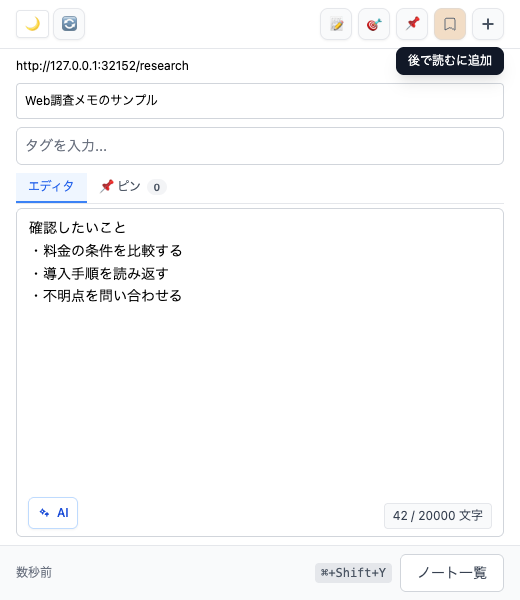
Separate what the page actually says from what you still need to verify. A short unanswered question is often more useful on your next visit than a copied paragraph without context.
3. Adjust the panel to fit your work
Drag the panel's edge to change its width. Chrome's appearance settings let you choose which side it opens on. Menu wording can vary with Chrome versions; Google's side-panel help is linked below.
An open panel reduces the space available to the website. If you are reviewing a layout, close the panel and check the page at the intended width too. A narrow page beside a panel does not replace testing on a mobile device.
4. Switch tabs and find the original note
Try this with your first note:
- Check that the note on page A has saved.
- Switch to page B and check the URL displayed in the panel.
- Return to page A and look for the original note in Fusenly.
- Add a tag if useful, then find the note through the list at the bottom of the panel.
Before continuing to type after a tab switch, check the title and URL. Keep each page's evidence in its own note and put a conclusion spanning several pages in a separate summary.
Open the panel with a keyboard shortcut
Fusenly's default shortcut is Ctrl+Shift+Y on Windows and Command+Shift+Y on Mac. If it does not respond, check Chrome's extension shortcut settings for a missing assignment or a conflict with another extension.
You can close the panel with Chrome's close button in its upper corner. Pinning an icon does not configure the panel to open automatically in every window.
Troubleshoot a missing panel or note
| What you see | What to check first |
|---|---|
| No Fusenly toolbar icon | The extensions menu and the icon's pin setting |
| It fails on a particular page | Whether this is a restricted page, such as Chrome settings or the Web Store |
| The shortcut does nothing | Chrome's extension shortcut assignments |
| An article appears to have no note | The saved URL, current URL, and Chrome profile |
| A note is missing on another PC | Whether you used local storage only or connected cloud sync |
Different query parameters can cause two addresses for an article to be treated differently. Start by reopening the saved note's URL. See the URL-note guide for matching details. Avoid uninstalling the extension or clearing its data while you are still checking where the note was saved.
For a sequence covering profiles, the note list, addresses, and cloud connections, follow the missing-note checks.
Understand where your notes are stored
Local notes belong to the Chrome profile where you created them. Signing into Chrome alone does not sync Fusenly's local notes between computers.
Fusenly's login and cloud sync are an public beta. They require a free account and an extension connection. Beta cloud storage allows up to 1,000 notes per organization. Check these conditions before relying on a multi-PC workflow; the getting-started guide explains the distinction.
See local storage versus cloud sync for using another PC, and the ZIP export workflow for keeping note files.
These instructions cover desktop Chrome. They do not describe installing this extension in Chrome on a phone. A URL note also does not archive the original article's content.
Sources
Chrome's official guidance was checked on October 31, 2026. Fusenly instructions follow the current implementation and the existing product screenshot.
Related articles
- How to Take Notes on Web Pages in Chrome with a Free Extension
Learn how web page notes differ from Chrome bookmarks and the reading list, how URL-based notes work, and how to write your first note with the free Fusenly extension.
- Save Web Pages to Google Keep and Add Useful Notes
Save web pages and selected content with the Google Keep Chrome extension. Find your notes, understand what you saved, and choose when to use URL notes.
- 5 Chrome Note-Taking Extensions Compared: Sticky Notes and Sidebars
Compare Google Keep, OneNote Web Clipper, MemoPad New Tab, Note Anywhere, and Fusenly. Includes hands-on local save and reopen checks for three extensions, with screenshots and test limits.