
2. Create, Edit, and Delete Notes
Create URL-based and general notes, add another note, edit with Markdown, check saving, and delete a selected record from the extension note list.
Use a URL note for a particular website and a general note for an agenda or draft unrelated to a page. General notes may appear under a differently named section in other languages. This chapter covers local notes.
Create a URL note
- Open the source page and Fusenly's side panel.
- Check the URL at the top.
- Enter a title and body, then check the update time at the bottom.
- Reopen the note on that URL to verify its contents.
To add another note for the same page, select the plus icon and enter a title and body. When several records share the URL, use the panel's same-page note selector to choose one. Check that the previous record has saved before adding another.
Switch to a general note
- Select the notepad icon labeled “Switch to general note.”
- Wait until the page URL is replaced by the general-note label.
- Enter a title and body.
- Check the update time. Use the plus icon to add another general note.
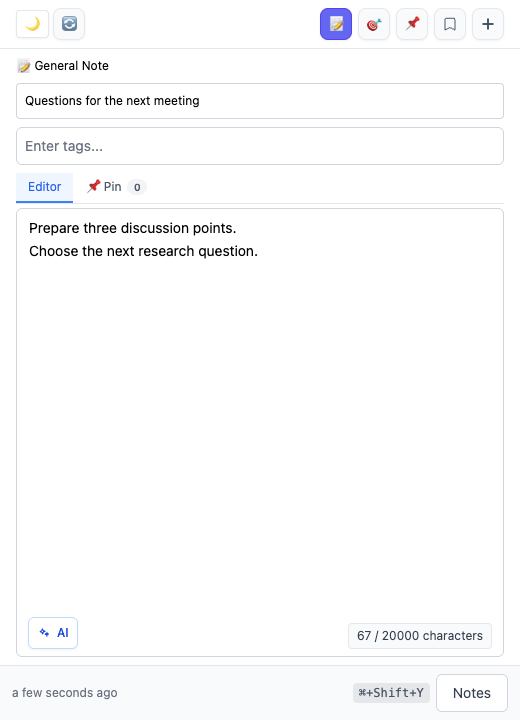
Select the same notepad icon to return to page notes, then check the source address. The management screen also has a General Notes section for viewing those records.
Edit an existing note
For a page note, return to the original page, open the panel, and select the intended record. Change the title or body and check its save state. After switching records, wait for the expected title and text before editing.
The editor supports Markdown headings and lists. Typing # at the start of a line begins a heading, while - begins a list. Check the editor's display as you type.
Confirmed findings:
Open questions:
Next action:
Start with the fields you need. See Markdown research notes for formatting examples.
Delete a note
- Select “Notes” at the bottom of the panel.
- Find the intended title and inspect its content.
- Select the record's Delete action.
- Check the confirmation and complete deletion, or choose Cancel.
The list also supports selecting several records for bulk deletion. Start with one record to understand the workflow. Keep needed text using the export procedure in chapter 6 before removing it. Do not assume deletion can be undone.
If saving reports an error
Keep a copy of the text you are editing, then check the source URL, storage destination, and connection state. Avoid switching records or tabs until saving is confirmed. Follow chapter 7.
Previous: 1. Get Started