
Write Research Notes in Markdown: A Simple Starter
Use headings, lists, source links, and code formatting for research notes. Includes a reusable example and checks for moving Markdown between note apps.
Start a Markdown research note with headings for information types, lists for findings, and links for sources. The purpose is to distinguish confirmed facts from questions when you return to the record.
This guide introduces a small set of notation and an example you can adapt. Markdown implementations vary, so check how the editor you use displays it.
Start with four kinds of formatting
| Purpose | Example | Research use |
|---|---|---|
| Heading | ## Confirmed findings | Separate facts and questions |
| List | - Check the target version | Record points and actions |
| Link | [Official help](https://example.com/help) | Identify a source |
| Inline code | Surround text with backticks | Distinguish setting names and error codes |
Put a space after a heading marker or list hyphen. Give links descriptive labels, such as “Official authentication guide,” so you can tell what you are opening.
Adapt this small research note
## Question

Could a setting change resolve this error?

## Source

Page: The product's official help
URL: The actual page checked
Checked: 2026-10-31

## Confirmed findings

- The official procedure describes setting A.
- I have not compared the documented version with my environment.

## Open questions

- Is setting A required in the version we use?

## Next actions

1. Read the documentation for that version.
2. Compare behavior before and after the change in a test environment.
This is a fictional investigation. Replace setting A with the real name and record only findings you have checked. If planned experiments become mixed with completed ones, add a separate results section.
Split a growing note by purpose
A record about one source can stay with its URL. When the analysis spans several sources, keep page-specific evidence separately from the combined conclusion.
For example, put “what the official procedure confirms” with the original page and “which approach we chose” in a summary. Preserve the source links when moving information. The source log template helps connect a decision with its evidence.
Check formatting in a small example
When a note displays unexpectedly, try one heading and one list item first. Then add the complex part to distinguish a notation mistake from an unsupported feature.
Content pasted from a formatted page may carry more than you intended. Try the text in a small note and inspect the structure. Tables, equations, and task lists are extensions whose behavior can differ between Markdown editors.
Write beside a source page in Fusenly
Fusenly supports Markdown in its note body and provides an editor in Chrome's side panel. Check the displayed URL, create a short heading and list, and check the save state after writing.
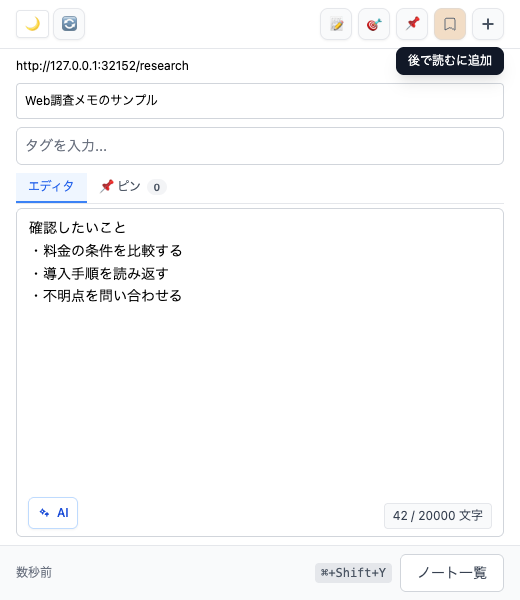
Use structure to communicate the type of information. Separate headings for confirmed findings, uncertainty, and next action can be more useful than making every important sentence bold.
Verify a note after moving it
Open one exported note in the destination app. Check headings, source URLs, non-English text, line breaks, and code content. Preserving the text's appearance and reconstructing the original app's tags or pins are separate questions.
See exporting and keeping browser notes for what Fusenly's ZIP contains, or technical article study notes for recording experiments.
Source
Notation and Fusenly features checked on October 31, 2026.
For the actual steps, see how to create and edit notes in the user manual.
Related articles
- Take Better Notes on Technical Articles: Record Experiments and Questions
Turn technical articles and official documentation into useful study notes by recording your goal, environment, experiments, results, and next question. Includes a reusable template.
- A Research Source Log Template for URLs and Evidence
Connect research decisions to their sources. Record URLs, checked dates, exact sections, scope, and unanswered questions, with a template for conflicting evidence.
- Back Up Browser Notes: Check a Fusenly ZIP Export
Export Fusenly notes to ZIP and verify Markdown files, URLs, tags, and the index. Understand which data is included and which pins or settings need separate care.