
6. Back up notes as a ZIP file
Export local notes to ZIP, check the Markdown bodies, index.md, and metadata.json, and understand which data is omitted from the backup.
Keep a ZIP copy of important local notes. Export can also provide a separate copy while you use cloud sync.
Download the ZIP
- Click Notes at the bottom of the panel.
- Select Settings in the sidebar.
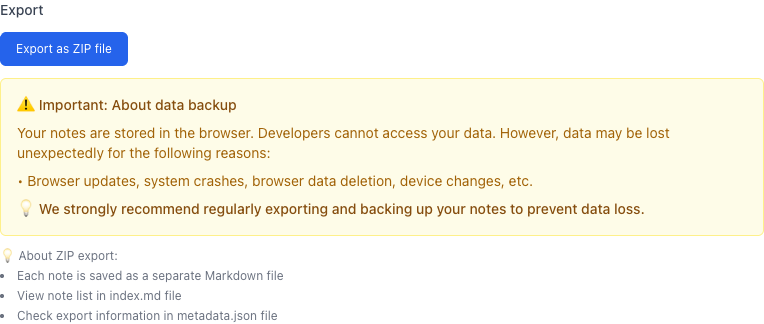
- Find Export under data management.
- Click Export as ZIP file.
- Check that a ZIP file was saved to your download location.
Export includes notes stored in the extension in this browser profile. It does not export only the currently filtered rows, or every cloud organization in one operation.
Check the contents
Extract the ZIP and inspect these files.
| File | Contents |
|---|---|
Individual .md files | Note bodies plus title, URL, created/updated dates, Read Later state, tags, and other note fields |
index.md | A list of exported notes |
metadata.json | Export information, note information, and file names |
Keeping only metadata.json does not preserve the note bodies. Keep the whole ZIP, including the individual Markdown files. Open at least one Markdown file and check its body and source URL.
What is not included
The current ZIP does not include pin comments or positions, browser settings, or connection credentials. It also does not archive the complete source web page. Copy essential pin comments into note bodies or another record.
Export gives you files you can read and store. It is not a complete restoration of application state. This manual does not provide a workflow to import the ZIP as a full restore.
When to export
- Before changing computers or browser profiles.
- Before removing the extension or clearing its saved browser data.
- Before deleting or reorganizing many notes.
- At important milestones in your research.
Store the copy in a dated folder. If notes contain confidential information, check who can access that location. Verify the contents rather than relying only on a completed download.
Previous: 5. Connect and use cloud sync