
5. Connect and use cloud sync
Connect the extension to the public cloud beta, check the account and organization, understand sync states, and disconnect or revoke access.
Cloud sync is an public beta. Local notes work without an account or cloud connection. Anyone can create a free Web account to follow this chapter.
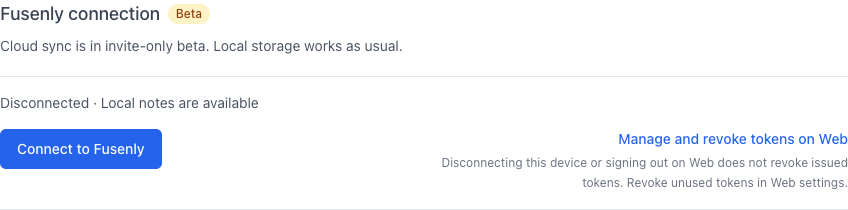
The screenshot below shows a disconnected extension. It does not show a completed connection or prove synchronization with a production account.
Before connecting
If you have important local notes, export them first. Cloud notes belong to an organization. Confirm the intended account and organization during connection. The beta limit is 1,000 notes per organization.
Start from the extension
- Click Notes at the bottom of the panel.
- Open Settings in the sidebar.
- In Fusenly connection, click Connect to Fusenly.
- Sign in on the Web tab if needed.
- Check the account and organization, then approve the extension connection.
- When the completion message appears, return to extension Settings and check its state.
Web sign-in uses a passkey or an email sign-in link. Sensitive operations can require an additional verification step. If you close the connection tab, use Open connection tab in the extension. If the request expires, restart connection from Settings.
Read the sync status
After connecting, existing unlinked notes and subsequent changes are synchronized automatically. Check the status in Settings or the panel.
| State | What to check |
|---|---|
| Initial sync uploading or downloading | Watch the completed count advance |
| Automatic sync enabled | Check the corresponding note on Web too |
| Sending changes or syncing | Wait for completion before checking another device |
| Waiting to sync | The extension retries when connectivity returns; use Retry sync if needed |
| Sync stopped | Check the displayed error, connection, permissions, and note limit |
On Web, open the same organization selected during connection. Viewing another organization can make a saved note appear missing. If a conflict message says both versions were kept, compare their contents before removing either one.
Disconnect or revoke access
Use Disconnect this device in extension Settings to remove this device's connection. Disconnecting the device or signing out on Web does not revoke already issued connection tokens.
To invalidate the access itself, open Manage and revoke tokens on Web and revoke the token you no longer need. Connect again if you later need access.
Previous: 4. Add pinned comments to a page