
4. Add pinned comments to a page
Place, edit, and move pinned comments on a web page. Learn visibility controls, archiving, deletion, and what to check when the page layout changes.
Use a pin and a short comment to point to a particular place on a page. Open the page and confirm its URL at the top of the side panel first.
Place and save a pin
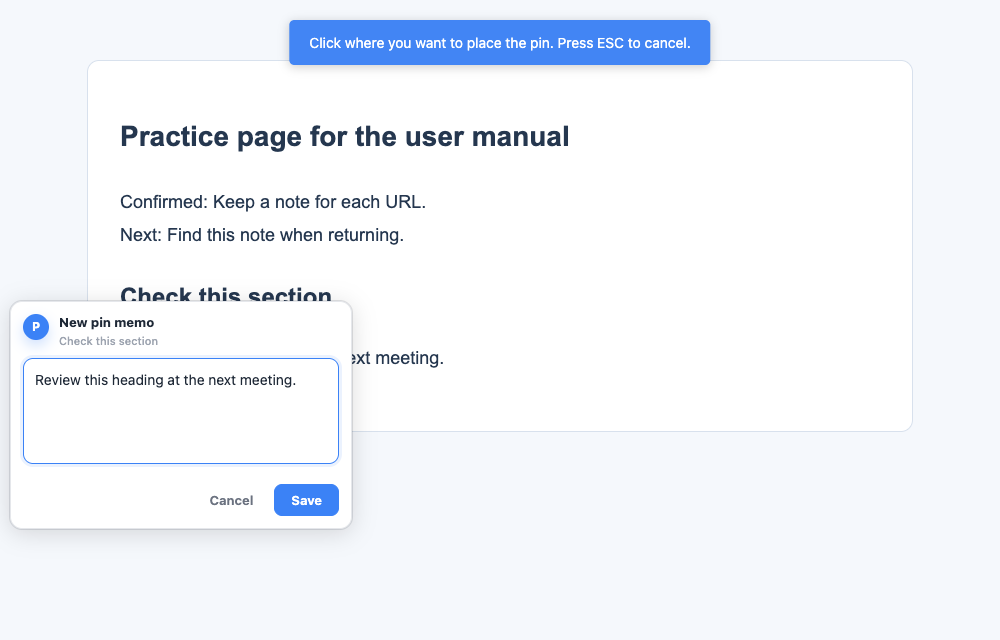
- Click the pin icon at the top of the panel, labeled Pin memo.
- Click the heading or text you want to point to on the page.
- Write your comment in the popover.
- Click Save.
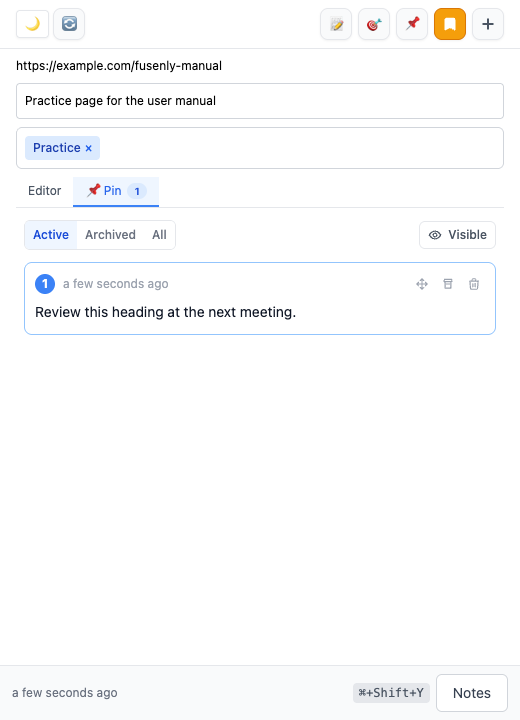
- Open the “📌 Pin” tab and check that the comment appears.
Press Esc to cancel before choosing a position. Practice on an ordinary web page where extension scripts can run.
Reopen or edit a comment
Click the pin on the page or its card in the Pin tab to open the comment. Choose the pencil icon labeled Edit pin memo, change the text, and click Save. Reopen the comment to check the result. Long comments can also be expanded in the list.
Move a pin
- Hover over the card in the Pin tab.
- Choose Move.
- Click its new position on the page.
- Check that the pin moved to the intended place.
A changed page layout can prevent the original target from being found or place the pin somewhere unexpected. Check the source URL and the current page content before moving it.
Hide, archive, or delete
| Action | When to use it | How to return |
|---|---|---|
| Hide pins | Temporarily clear the page view | Choose Show pins |
| Archive | Keep a comment after finishing its task | Open Archived and choose Restore |
| Delete | Remove a comment you no longer need | Do not assume you can undo deletion |
Also check the Active, Archived, and All filters. An invisible pin has not necessarily been deleted.
Sharing and backup
Local pins do not post to a website's public comment system. To send feedback to someone else, arrange a way for them to see the information. The current ZIP export does not include pin comments or their positions. Copy essential comments into a note body or another record too.