
Write Clear Website Change Requests: A Practical Template
Write website change requests with a URL, location, current behavior, expected result, and acceptance checks. Includes a template and concrete examples.
A useful website change request says which page and element to change, what happens now, what should happen instead, and how to check the result. A screenshot identifies a location; a replacement sentence or expected behavior tells the recipient what you want done.
This article provides a request template and examples you can adapt. For the mechanics of marking a location, see how to comment on a website.
Give the recipient enough information to act
Your request should help someone open the same state, understand the reason for the change, and verify completion.
| Field | What to include |
|---|---|
| Page | URL, page name, and environment |
| Location | Heading, button label, or identifiable element |
| Current state | The wording or behavior you observed |
| Requested change | Exact replacement text or expected behavior |
| Reason | The user difficulty or misunderstanding to address |
| Acceptance check | What must be true before the request is complete |
| Coordination | Priority, owner, requested date, and reviewer |
Use “to be agreed” where ownership or dates are undecided. A requested deadline should not look like a commitment the recipient has already accepted.
Copy this website change request template
Subject: [Page name] Change to [element]

URL:
Environment: Production/staging, OS, browser, viewport width
Location:
Current state:
Requested change:
Reason and user impact:
Acceptance check:

Priority: To be agreed
Requested date: To be agreed
Owner and reviewer: To be agreed
Screenshots or related requests:
For layout problems, include the width you checked as well as the browser. For a problem that occurs after an interaction, add the steps, such as opening a menu and selecting an item.
Replace vague feedback with a checkable result
The following examples use a fictional website. Substitute your actual observations rather than copying the environments or numbers unchanged.
A wording change
“Make the button clearer” leaves the replacement open to interpretation. A more actionable request is:
Location: Application button at the bottom of the pricing page
Current state: Label says “Next”
Requested change: Replace it with “Request a quote”
Reason: Avoid implying that clicking commits the visitor to a contract
Acceptance check: New wording appears and the button opens the quote form
If the wording is only a proposal, label it as such and identify who will approve it. That keeps a suggestion from being mistaken for an agreed change.
A layout correction
“Broken on mobile” may not let the recipient reproduce what you saw. Provide the conditions and expected outcome:
Environment: Safari on iPhone, 390 CSS-pixel viewport width
Location: Email field on the contact page
Steps: Open the page and tap the email field
Current state: The right edge extends beyond the screen; horizontal scrolling is needed
Requested change: Keep the entire field within the viewport while typing
Acceptance check: Enter and submit the form at that width without horizontal scrolling
Describe the visible problem before proposing a cause. If you have not investigated the CSS, do not present a particular width rule as the confirmed cause.
Keep independently checkable changes separate
A request to adjust spacing, replace an image, and fix a link can be partly completed without anyone knowing what remains. Separate changes that can be implemented and verified independently.
Some changes belong together. If a heading and its explanation must change as a pair to preserve meaning, say so. The goal is a clear unit of work, rather than a fixed number of edits per request.
Use pins, screenshots, and a tracker for different jobs
A pinned annotation helps record a location. A screenshot preserves the appearance you observed. A shared request list or issue tracker records ownership and review status.
Fusenly lets you collect personal pinned comments while reviewing a page. You can revisit those observations before a meeting. Do not assume another person can automatically see your local pins: transfer the relevant text and any necessary images to the agreed request channel.
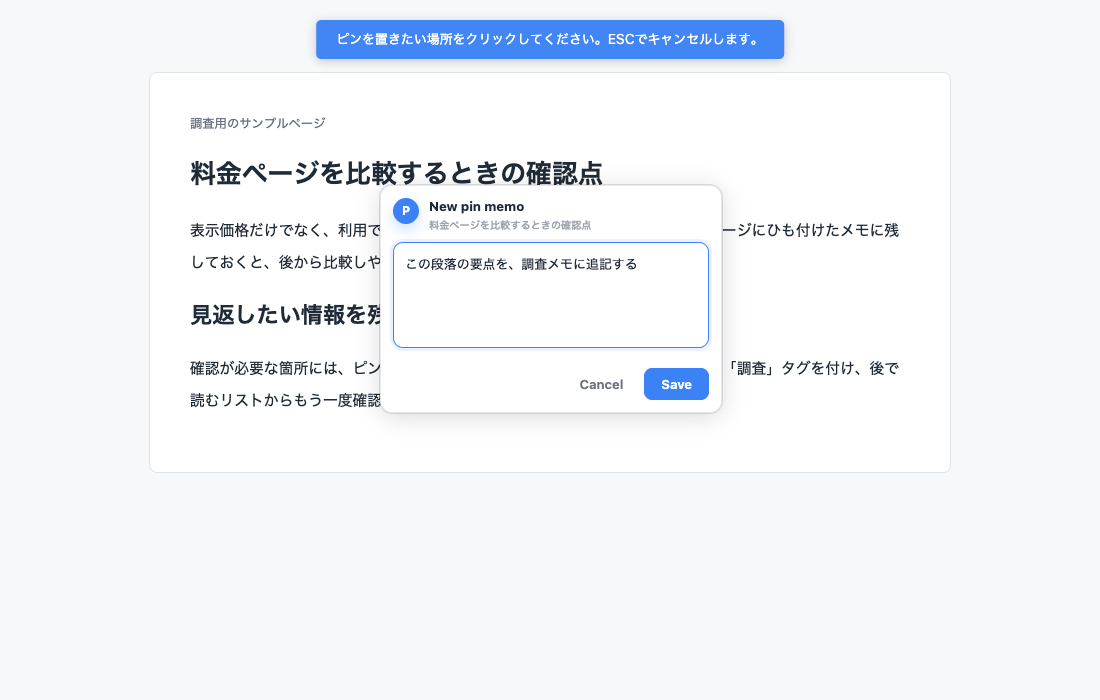
Fusenly does not capture screenshots. Use your operating system or another capture tool if an image is needed, and remove irrelevant personal information before sharing it. If a page may change before the recipient opens it, an image can preserve the earlier state even when a pin's target changes.
Track several requests in a small list
| ID | Location and request | Priority | State | Next check |
|---|---|---|---|---|
| R-01 | Pricing page button wording | Normal | Requested | Approved text and destination |
| R-02 | Contact field overflowing | Check before release | In progress | Enter and submit on the specified device |
| R-03 | Proposed home-page image | Improvement | Needs discussion | Asset choice and approval |
This is a fictional example. In your working list, add the target URL, a link to the full request, owner, date, and reviewer. This is not an example of a table Fusenly generates or synchronizes automatically.
Verify the result after implementation
- Confirm which environment and URL contain the change.
- Repeat the conditions in the request and check the expected result.
- Check affected interactions, such as the changed button's destination.
- Record who reviewed it, when, and the outcome in the shared channel.
- Archive any completed personal pin after verification.
Correct wording alone does not prove that a button opens the right page. Writing the acceptance check before implementation gives both people a common way to decide whether the work is complete.
Frequently asked questions
Is a screenshot enough?
It may show where, but not what to change. Include the URL, requested result, and acceptance check. If the screen needs a particular login state or interaction, describe that too.
What if the whole team needs to leave comments?
Choose a shared tracker or dedicated review tool based on visibility, ownership, status tracking, and the setup required for reviewers. If you also keep personal observations, agree where a formal request must be recorded so the team can find it.
For the pin-placement workflow, see comments and annotations on web pages.
If an interaction fails an expectation, use the website bug report template to record steps and actual versus expected results.
Related articles
- How to Comment on a Website: Notes and Pinned Annotations
Add comments and annotations to web pages in Chrome. Follow the pin workflow and understand personal notes, team feedback, and public website comments.
- Sticky Notes for Websites in Chrome: Comparing Extension Types
Compare sticky note, highlighting, annotation, and side-panel extensions for Chrome. Understand the differences and choose an approach that fits how you read and review web pages.
- How to Organize Competitor Research Notes: Sources, Facts, and Hypotheses
Keep competitor pricing and feature information separate from your interpretation. Use page-level notes, comparison tables, and explicit open questions to support your decisions.