
How to Organize Read-Later Pages in Chrome: Reading List vs. Bookmarks
Compare Chrome reading lists and bookmarks, make saved articles easier to find, and use tags and short notes to keep a useful read-later list with Fusenly.
It is easy to save an interesting article to read later and then find yourself with dozens of unread pages. The problem is often that saving is convenient, while reviewing is not part of the routine.
This article compares Chrome's reading list with bookmarks and shows how to turn saved pages into a list you actually read.
When a read-later list helps
A read-later list is a temporary home for articles you cannot read now but do not want to lose.
- A long article you find during a commute or between meetings.
- A social media thread that deserves more time.
- Useful reference material that is slightly outside the scope of your current research.
“Temporary” is the key word. A list needs an exit: remove pages after reading them, or delete them when you decide not to read them.
Chrome reading list vs. bookmarks
Chrome has two features for saving pages.
The reading list holds pages you want to read later. On desktop, open Chrome's menu and choose “Bookmarks and lists,” then “Reading list,” then “Add tab to reading list.” You can also right-click a tab and add it to the reading list. Saved pages appear in the side panel.
Bookmarks keep pages you expect to revisit over a longer period. Organize them in folders, or type @bookmarks in the address bar to search them.
| Reading list | Bookmarks | |
|---|---|---|
| Intended use | Pages you may only need to read once | Pages you open repeatedly |
| Organization | Review a list and remove finished items | Group pages into folders |
| Location | Side panel | Bookmarks bar, bookmark manager, or side panel |
When you are signed in to Chrome with sync enabled, you can access both from Chrome on other devices.
A useful distinction is whether you expect to open a page more than once. Put an article you only need to read once in the reading list, and keep frequently used work documentation in bookmarks. This prevents your bookmarks from filling up with unread articles.
Make saved articles easier to find
Lists often grow because you forget why you saved something. A title alone may not explain why you wanted to read a page, so the decision keeps getting postponed.
Add one short reason when you save it:
- “Could be useful for next week's planning meeting.”
- “Reference for the authentication design.”
- “Read if there is time; not essential.”
Being honest about low-priority pages makes them easier to remove later. Set aside a little time each week to decide whether to read, delete, or move each page to bookmarks.
Use tags and notes
Chrome's reading list has no dedicated tags or field for recording a reason. If you want to organize pages by topic or purpose, use a tool that supports both notes and tags.
Tag pages by why you intend to read them, such as planning, learning, or research. When you have time, you can start with articles relevant to the work in front of you.
After reading, keep a short note about the takeaway. A one-line summary makes the article easier to recall. See A Read-Later Workflow That Does Not Pile Up for a simple routine.
Manage read-later notes in Fusenly
Fusenly lets you mark a page's note to read later.
- Open Fusenly's side panel on the page you want to save.
- Write why you are saving it, and add tags if useful.
- Press the read-later button at the top.
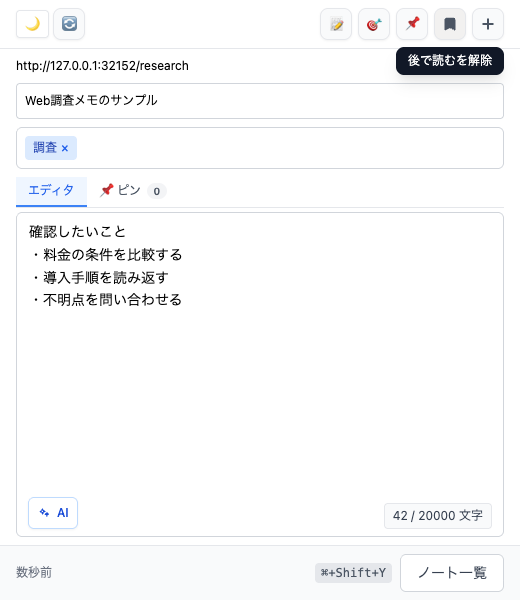
To find these pages, open the notes list at the bottom of the side panel and filter for read-later notes. When you finish reading, toggle the same button off to remove the page from that filtered list. The note itself remains, so your summary and thoughts are still available.
If you use X, formerly Twitter, Fusenly also has a convenient behavior: bookmarking an X post in Chrome with Fusenly installed automatically saves it as a read-later note.
For more about page-specific notes, see How to Save Notes by URL in Chrome.
Frequently asked questions
Is Chrome's reading list still available?
Google's help still describes the reading list as of October 2026. It is available in desktop and smartphone versions of Chrome.
Does Fusenly's read-later flag sync with Chrome's reading list?
Fusenly's read-later flag belongs to a Fusenly note and is managed separately from Chrome's reading list. The read-later section in the left menu of Fusenly's notes list can also display Chrome reading list entries grouped by unread and read status.
I have too many bookmarks. Where should I start?
Start with folders you have not used recently. Move articles you only need to read once to the reading list or a read-later tool with notes. It becomes easier to see which bookmarks are worth keeping.
Related articles
- A Read-Later Workflow That Does Not Pile Up
A simple save, review, and delete workflow for keeping a read-later list useful instead of letting it become an unread backlog.
- How to Save Notes by URL in Chrome and Find Them When You Return
Keep notes connected to their source pages. Learn how URL-based notes differ from a regular notes app, how to use them for research, and how to organize them with tags in Fusenly.
- How to Take Notes on Web Pages in Chrome with a Free Extension
Learn how web page notes differ from Chrome bookmarks and the reading list, how URL-based notes work, and how to write your first note with the free Fusenly extension.