
Tags vs Folders for Notes: Build a Retrieval Habit
Choose note folders for a clear home and tags for overlapping topics. Use practical naming examples and a small review process to avoid excessive classification.
Folders suit notes with a clear home; tags suit notes you need to retrieve through overlapping subjects. Start with the words you would search for later, then choose how much classification to maintain.
A pricing-page note might belong to project A, an authentication investigation, and a meeting discussion. Those are separate reasons to retrieve the same record.
Compare retrieval methods
| Method | Useful when | Where it becomes awkward |
|---|---|---|
| Folders | The project or year gives a clear home | A source serves several projects |
| Tags | You search across topics or uses | Similar labels multiply |
| Body search | You remember a name or specific question | You cannot recall the wording used |
These are general approaches. Apps differ in hierarchy and search behavior. Fusenly supports tags on URL notes and general notes.
Begin with projects and topics
Choose a small set of recurring names rather than inventing a new term every time. These examples are naming conventions, not automatic classification features.
| Dimension | Example tags | Purpose |
|---|---|---|
| Project | Project A, Website update | Find records for the same task |
| Topic | Authentication, Pricing, Writing | Reuse knowledge across projects |
| Intended use | Meeting question, Citation candidate | Recall the next use |
If “Research” and “Investigation” mean the same thing in your collection, choose one. If “Tested” and “To test” describe different evidence states, keep the distinction even though the words are similar.
Limit labels that need constant updates
Tags for unread, waiting, in progress, and checked can require maintenance whenever work changes. Fusenly already has a read-later flag, so decide how to represent unread status before duplicating it with another tag.
For a status written in the body, add a checked date and next action. A reader should be able to tell whether an old waiting note still applies.
Title: Authentication questions for Project A
Tags: Project A, Authentication
Confirmed: Official help describes the setup procedure
Waiting: Can our administrator change this setting?
Next action: Ask the responsible person
Last checked: 2026-10-31
Add and retrieve tags in Fusenly
Open the note in the side panel, enter a name in the tag field, and press Enter to confirm it. Check the applied tag and save state, then try finding the record through the notes list.
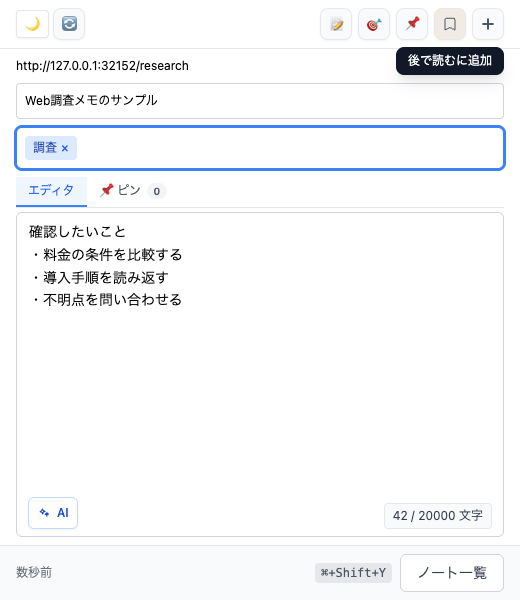
A tag helps you find a note. A sentence explaining why you saved the page helps you use it after opening it. Give the record enough context before adding more labels.
Review the searches you actually make
Pick a few recently retrieved notes and ask which words you tried first. Stop adding unused categories to new records. Treat overlapping names as candidates for review.
Before renaming or merging tags, inspect the affected notes. Keep classification cleanup separate from deleting the notes themselves. Before a broad cleanup, check exporting notes for safekeeping.
Use a small starting rule
One possible rule is one project label, useful topic labels, and status recorded through a dedicated flag or the note body. Use it for a week and add only the dimensions you actually need to retrieve.
For native browser folders, see organizing bookmarks. Fusenly's note tags do not edit Chrome's bookmark folders.
For the actual steps, see how to use tags, search, and Read Later in the user manual.
Related articles
- How to organize bookmarks with folders, tags, and notes
Organize Chrome bookmarks with folders, clearer names, sorting, and search. Learn when URL notes and tags help, and how Fusenly differs from a tool that edits native browser bookmarks.
- Too Many Chrome Tabs? Save a Research Restart Note
Organize research tabs by active work, waiting questions, and references. Use Chrome tab groups and a restart note to close pages without losing your place.
- Write Research Notes in Markdown: A Simple Starter
Use headings, lists, source links, and code formatting for research notes. Includes a reusable example and checks for moving Markdown between note apps.